
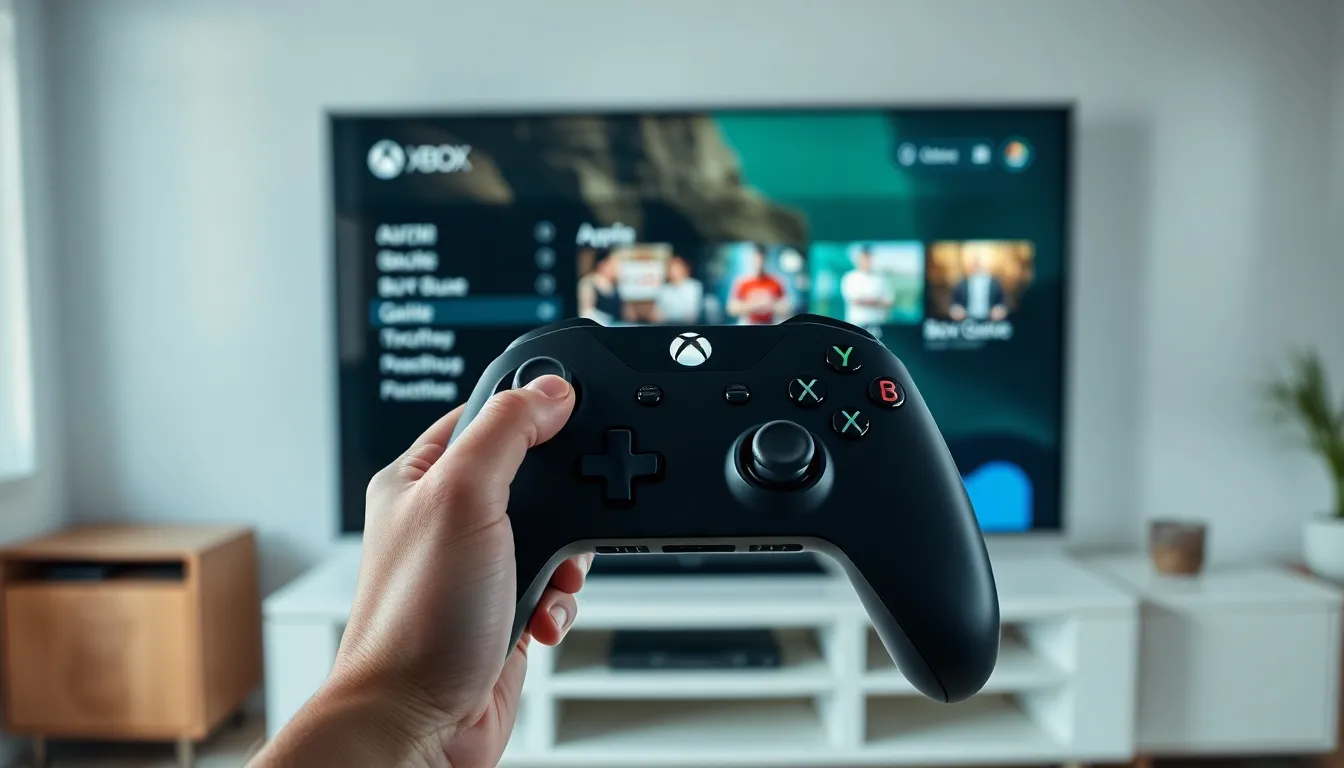
The Xbox guide serves as the central hub for everything players need on their console. This overlay menu provides quick access to friends, parties, settings, and games without leaving the current screen. Whether someone owns an Xbox Series X, Series S, or Xbox One, understanding the Xbox guide makes the entire gaming experience smoother.
Microsoft designed the Xbox guide to keep essential features just a button press away. Players can check notifications, adjust audio, capture screenshots, and manage downloads, all from one convenient panel. This article explains how to open the Xbox guide, what features it includes, and how to customize it for personal preferences.
Table of Contents
ToggleKey Takeaways
- The Xbox guide is a quick-access overlay menu that lets you manage friends, parties, settings, and captures without leaving your game.
- Press the Xbox button once to open the guide, hold it for power options, or double-tap to switch between your two most recent apps.
- The Xbox guide organizes features into tabs including Home, People, Parties & Chats, Notifications, Capture & Share, Audio, and Profile & System.
- Customize your Xbox guide by rearranging tabs, pinning favorite games, and adjusting notification settings under Settings > Preferences.
- If your Xbox guide won’t open or runs slowly, restart your console and close unused background apps to free up system resources.
- The guide remembers your last-visited tab, saving time when you frequently use specific features like parties or game captures.
What Is the Xbox Guide Button?
The Xbox guide button sits at the center of every Xbox controller. It features the Xbox logo and glows when the controller is powered on. Pressing this button opens the Xbox guide overlay on screen.
This button does more than just open a menu. A quick press opens the Xbox guide instantly. Holding the button for a few seconds brings up the power menu, where players can turn off the console, restart it, or switch profiles. Double-tapping the Xbox guide button switches between the two most recent apps or games.
The Xbox guide button also serves as the power button for the controller itself. Holding it for about six seconds while the console is off will turn on both the controller and the console. This makes it the most versatile button on the entire controller.
Players who use the Xbox Elite Controller or other third-party controllers will find the Xbox guide button in the same location. The functionality remains identical across all official Xbox controllers.
How to Open the Xbox Guide
Opening the Xbox guide takes just one button press. Players tap the Xbox button once, and the guide slides in from the left side of the screen. The current game or app continues running in the background.
The Xbox guide opens within about one second on Xbox Series X and Series S consoles. Xbox One consoles may take slightly longer due to older hardware. Either way, the process requires no additional steps.
To close the Xbox guide, players have several options. They can press the Xbox button again, press the B button, or simply move the cursor outside the guide panel. The guide will also close automatically after a period of inactivity.
One helpful feature: the Xbox guide remembers which tab players last visited. If someone frequently checks the Parties & Chats section, the guide will open to that tab next time. This saves time for players who use specific features regularly.
The Xbox guide works the same way in games and apps. It overlays on top of whatever is currently running without interrupting gameplay or streaming.
Key Features and Tabs in the Xbox Guide
The Xbox guide organizes features into several tabs that players can scroll through horizontally. Each tab focuses on a specific category of functions.
Home Tab
The Home tab shows recent games and apps. Players can quickly resume what they were playing or switch to something else. Pinned items also appear here for fast access.
People Tab
This tab displays the friends list and recent players. Users can see who’s online, what games friends are playing, and send messages directly. Party invites and game invitations appear here too.
Parties & Chats Tab
The Parties & Chats section handles all voice and text communication. Players can start parties, join existing ones, or open text conversations. This tab also shows active party members and their status.
Notifications Tab
All alerts collect in the Notifications tab. This includes achievement unlocks, game invites, system updates, and messages from friends. Players can clear notifications or adjust what types of alerts they receive.
Capture & Share Tab
Screenshots and video clips are managed here. Players can take a screenshot, record recent gameplay, or start a recording session. Sharing options let users post captures directly to social media or Xbox network.
Audio & Music Tab
Volume controls live in this tab. Players adjust game audio, chat audio, and headset settings without opening the full settings menu. Spotify and other music apps can be controlled here too.
Profile & System Tab
Account settings, sign-in options, and console settings are found here. Players can switch profiles, go offline, or access the full Settings app. Power options also appear in this section.
Customizing Your Xbox Guide Experience
Microsoft allows players to personalize several aspects of the Xbox guide. These customizations make the guide faster and more useful for individual needs.
Players can change the order of tabs in the Xbox guide. By going to Settings > Preferences > Guide, users rearrange tabs to put their most-used features first. Someone who frequently captures gameplay might move that tab to the front.
The Xbox guide also supports custom home screen items. Players pin favorite games, apps, and groups to the Home tab for quick access. This eliminates the need to scroll through the full game library.
Accessibility options affect the Xbox guide too. High contrast mode, larger text, and narrator support all work within the guide overlay. These settings apply system-wide and include the Xbox guide automatically.
Party overlay is another customization worth knowing. Players can enable a small overlay that shows party members during gameplay. This appears separately from the main Xbox guide and doesn’t require opening the full menu.
Notification settings let players control what appears in the Xbox guide. Users can disable specific notification types or limit alerts to important messages only. This keeps the guide cleaner and less distracting.
Troubleshooting Common Xbox Guide Issues
Sometimes the Xbox guide doesn’t work as expected. These solutions fix the most frequent problems.
Xbox Guide Won’t Open
If pressing the Xbox button doesn’t open the guide, the console may be frozen. Hold the power button on the console for 10 seconds to force a shutdown. Restart and try again. If the problem continues, check for system updates.
Xbox Guide Is Slow or Laggy
A slow Xbox guide usually means the console needs a restart. Heavy games or apps running in the background can cause delays. Closing unused apps frees up system resources and speeds up the guide.
Controller Not Responding
When the Xbox button doesn’t do anything, the controller may have disconnected. Press and hold the Xbox button for three seconds to reconnect. If that fails, try a USB cable connection or re-pair the controller through Settings.
Notifications Not Appearing
Missing notifications typically result from changed settings. Check Settings > Preferences > Notifications to ensure alerts are enabled. Also verify that Do Not Disturb mode isn’t active.
Xbox Guide Tabs Missing
If certain tabs aren’t showing, a system update may have changed the layout. Check for updates and restart the console. Factory reset is a last resort if tabs remain missing after updates.


